> ## Documentation Index
> Fetch the complete documentation index at: https://lindyai-docs-usage-credit-optimization-tips.mintlify.site/llms.txt
> Use this file to discover all available pages before exploring further.
# Meeting Notes
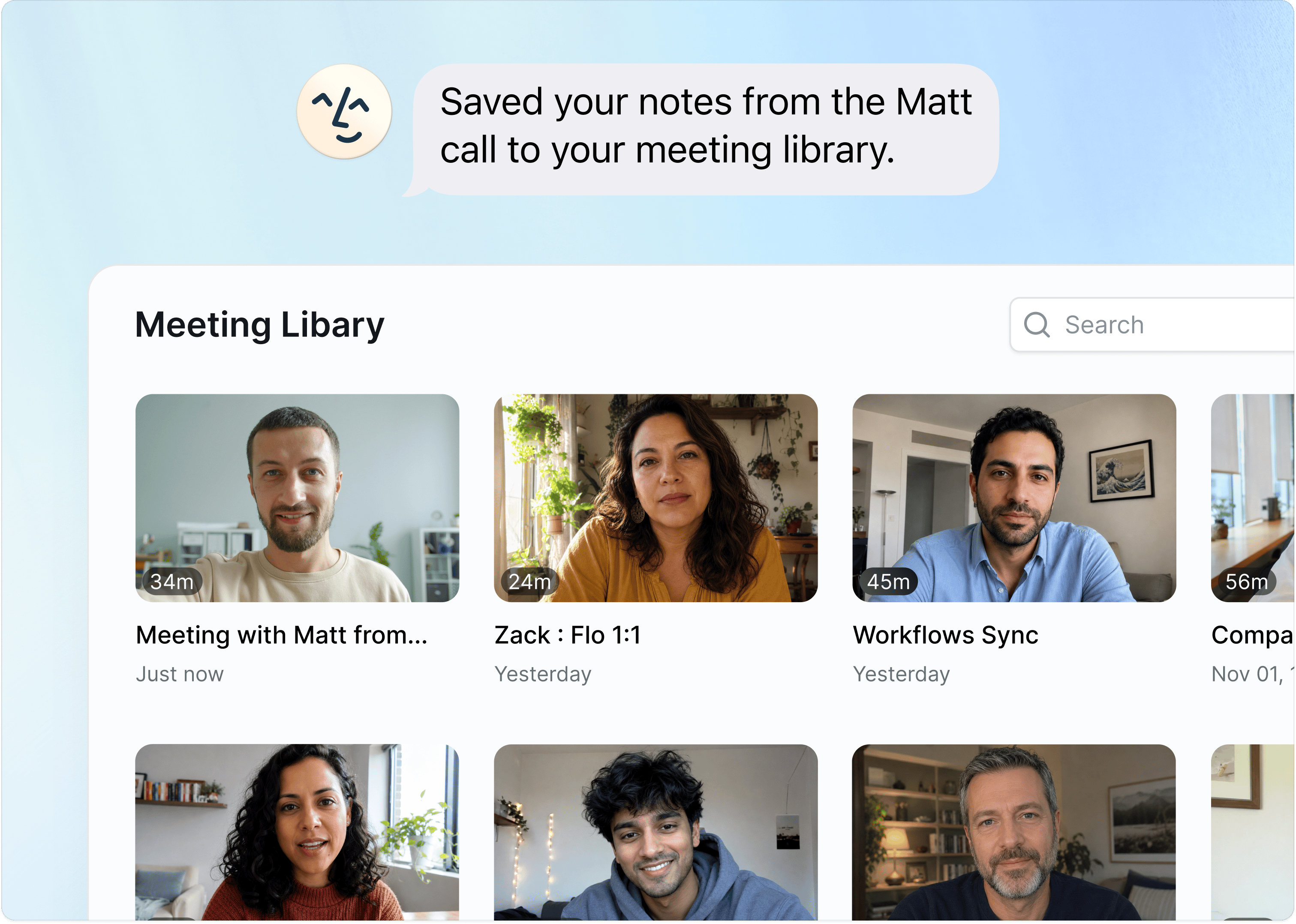
> Lindy joins, records, and transcribes your meetings on Google Meet, Zoom, and Microsoft Teams, delivers structured summaries, and saves everything to a searchable library you can query in plain language
 ## How to Set It Up
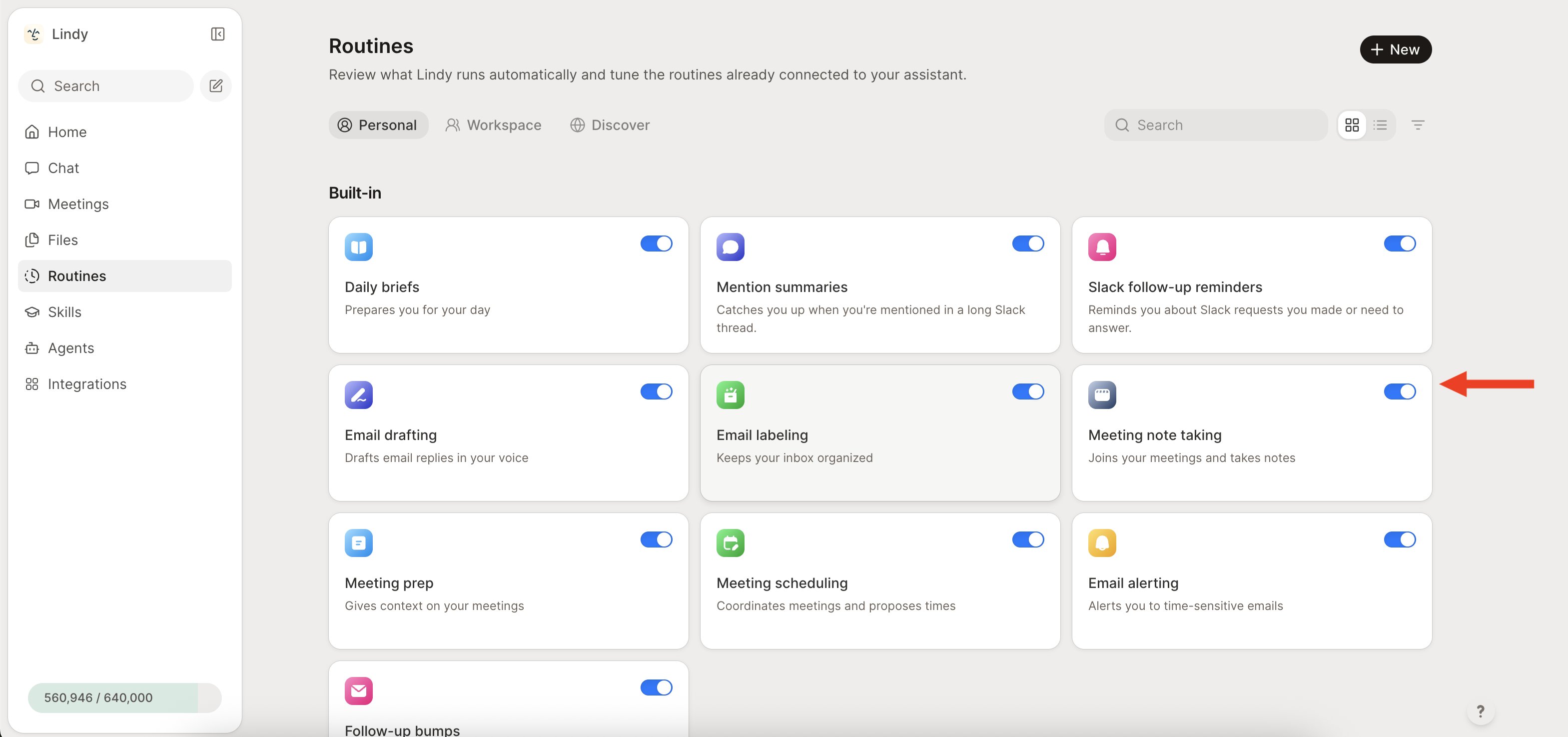
Meeting note-taking is a built-in **routine**. On the **Routines** page, open the **Personal** tab, find the **Meeting note taking** card ("Joins your meetings and takes notes"), and toggle it on. Click the card to set which meetings Lindy joins, the notetaker name, and your summary and recap settings.
## Supported Platforms
Lindy records meetings on **Google Meet**, **Zoom**, and **Microsoft Teams**.
## How It Works
1. **Lindy joins automatically**: no need to invite a bot or share a link. Lindy shows up to your meetings based on your calendar.
2. **Records and transcribes**: Lindy captures the full conversation.
3. **Summarizes and delivers**: after the meeting, Lindy generates a structured summary and sends it to your inbox with a link to the full recording and transcript.
## Which Meetings Lindy Joins
You control which meetings Lindy records:
* **All meetings**: Lindy joins everything on your calendar
* **External only**: record client and prospect calls, skip internal syncs
* **Specific meetings**: choose exactly which meetings to record
## Your Meeting Library
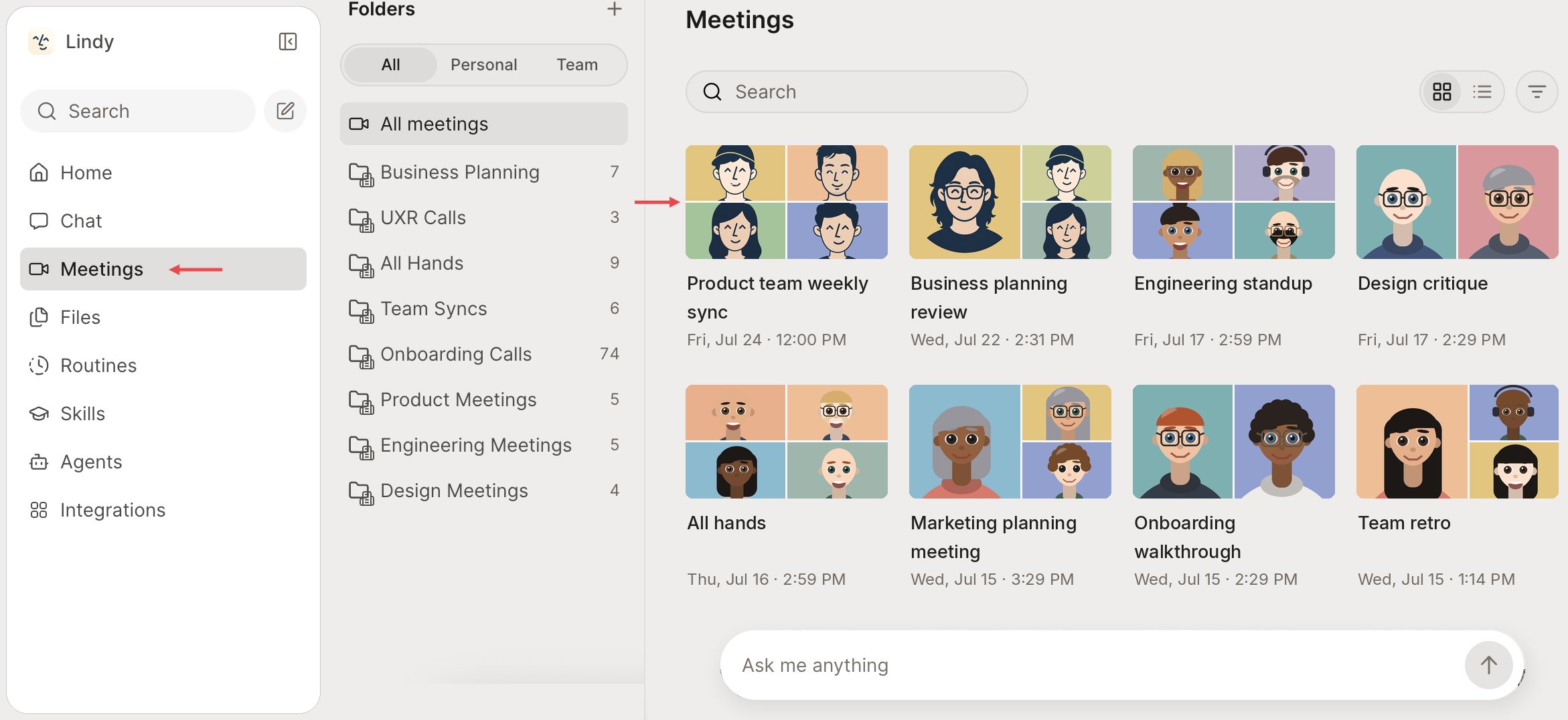
Find all your past recordings under **Home → Meetings** in the left nav. Click any meeting to open the full recording, summary, and transcript.
## How to Set It Up
Meeting note-taking is a built-in **routine**. On the **Routines** page, open the **Personal** tab, find the **Meeting note taking** card ("Joins your meetings and takes notes"), and toggle it on. Click the card to set which meetings Lindy joins, the notetaker name, and your summary and recap settings.
## Supported Platforms
Lindy records meetings on **Google Meet**, **Zoom**, and **Microsoft Teams**.
## How It Works
1. **Lindy joins automatically**: no need to invite a bot or share a link. Lindy shows up to your meetings based on your calendar.
2. **Records and transcribes**: Lindy captures the full conversation.
3. **Summarizes and delivers**: after the meeting, Lindy generates a structured summary and sends it to your inbox with a link to the full recording and transcript.
## Which Meetings Lindy Joins
You control which meetings Lindy records:
* **All meetings**: Lindy joins everything on your calendar
* **External only**: record client and prospect calls, skip internal syncs
* **Specific meetings**: choose exactly which meetings to record
## Your Meeting Library
Find all your past recordings under **Home → Meetings** in the left nav. Click any meeting to open the full recording, summary, and transcript.
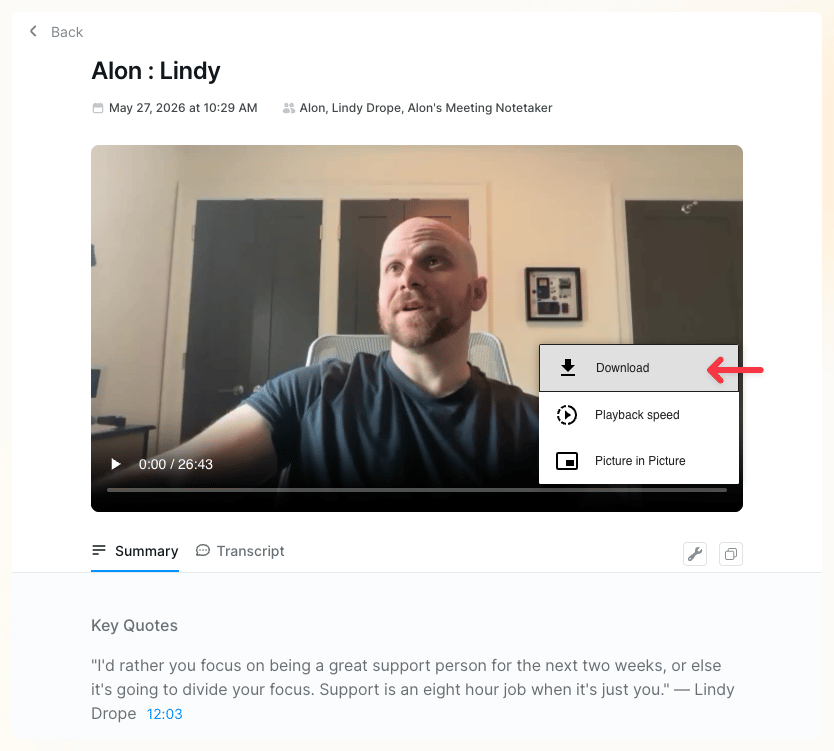
 Inside a meeting you can:
* **Watch the recording** — adjust playback speed (up to 2x), enter picture-in-picture, or **download** the file
* **Read the summary** — Key Quotes, Action Items, and a high-level summary
* **Browse the transcript** — searchable, timestamped, and clickable to jump to that point in the recording
Inside a meeting you can:
* **Watch the recording** — adjust playback speed (up to 2x), enter picture-in-picture, or **download** the file
* **Read the summary** — Key Quotes, Action Items, and a high-level summary
* **Browse the transcript** — searchable, timestamped, and clickable to jump to that point in the recording
 ## Updating Your Meeting Settings
To change any recording settings, open the **Meeting note taking** routine on the **Routines** page.
## Updating Your Meeting Settings
To change any recording settings, open the **Meeting note taking** routine on the **Routines** page.
 From here you can:
* Toggle **Meeting recording** on or off
* Set which meetings Lindy joins (**All meetings**, external only, or specific ones)
* Set your **Notetaker display name** — what Lindy is called when it joins
* Choose who receives the **post-meeting follow-up email**
* Define your **Summarization instructions** — structure, tone, and level of detail
* Choose where you're notified (email, Slack, etc.)
## Chat With Your Meetings
Your meeting library becomes a knowledge base you can query in plain language — via iMessage, SMS, or directly in the dashboard.
* "What did we decide in last week's meeting with Sarah?"
* "What were the action items from Tuesday's standup?"
* "What did \[name] say about pricing in our last call?"
* "What did I commit to sending \[name]?"
From here you can:
* Toggle **Meeting recording** on or off
* Set which meetings Lindy joins (**All meetings**, external only, or specific ones)
* Set your **Notetaker display name** — what Lindy is called when it joins
* Choose who receives the **post-meeting follow-up email**
* Define your **Summarization instructions** — structure, tone, and level of detail
* Choose where you're notified (email, Slack, etc.)
## Chat With Your Meetings
Your meeting library becomes a knowledge base you can query in plain language — via iMessage, SMS, or directly in the dashboard.
* "What did we decide in last week's meeting with Sarah?"
* "What were the action items from Tuesday's standup?"
* "What did \[name] say about pricing in our last call?"
* "What did I commit to sending \[name]?"
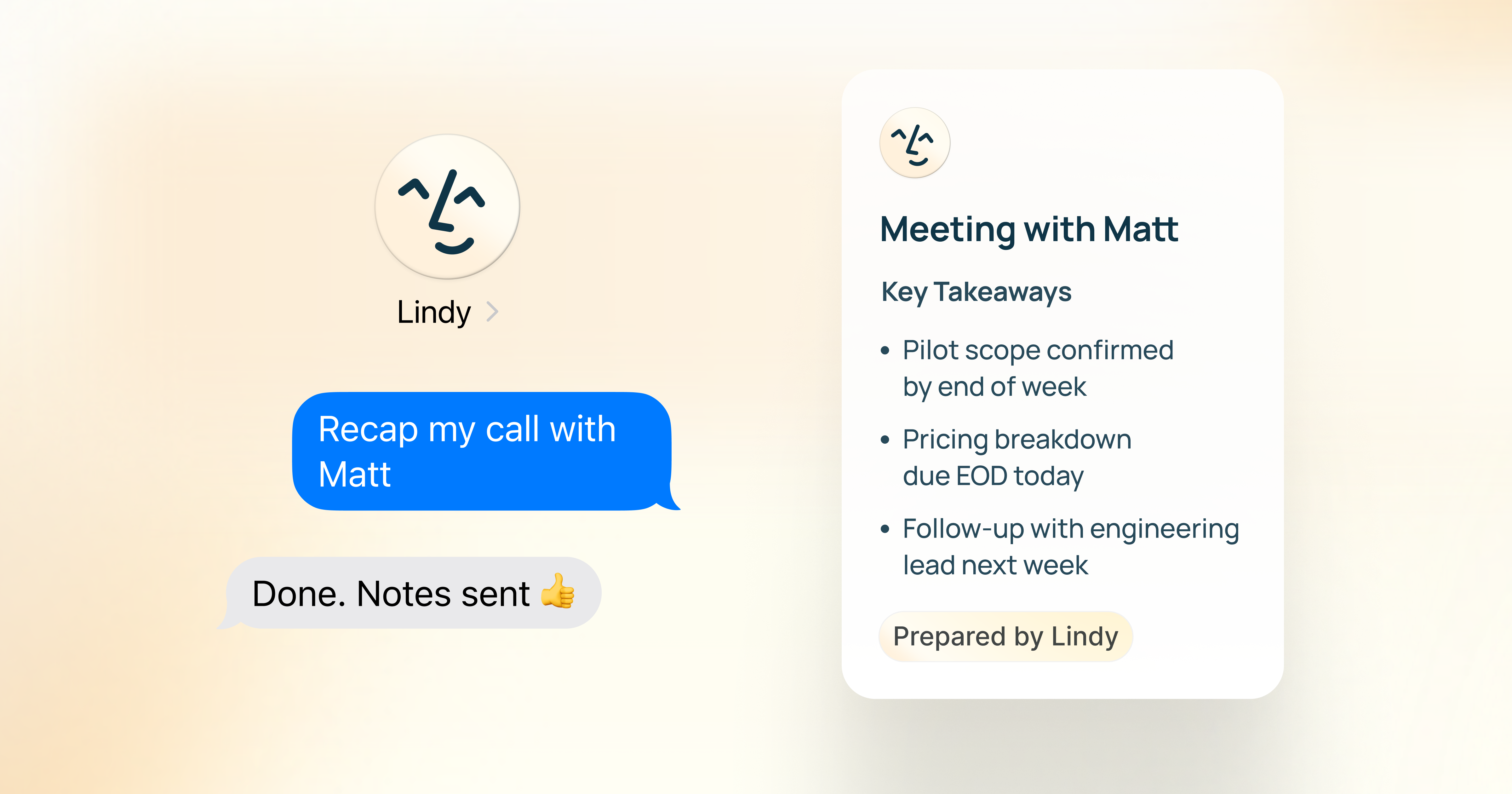 The more meetings you record, the richer the context Lindy can draw on.
## Post-Meeting Follow-ups
After every meeting, Lindy extracts the action items and sends a follow-up email to attendees. Decisions get documented, next steps are clear, and everyone knows what they own.
1. **Meeting ends**: Lindy processes the recording and transcript
2. **Action items extracted**: Lindy identifies decisions, next steps, and owners
3. **Follow-up sent**: an email goes out to attendees with the summary and action items
Set who receives it in the **Meeting note taking** routine:
* **All participants**: everyone on the invite
* **Internal only**: just your team
* **Specific people**: customize per your preferences
### Custom Follow-up Actions
Beyond email, tell Lindy to take extra actions after meetings. In the **Meeting note taking** routine, use the **Follow-up Actions** field to describe what Lindy should do.
**Lindy works with your existing tools** — Notion, Slack, Todoist, and hundreds more. Just tell it what to do (*"Add action items to Todoist"*) and it handles the rest. The first time it uses an app, Lindy asks you to connect it.
The more meetings you record, the richer the context Lindy can draw on.
## Post-Meeting Follow-ups
After every meeting, Lindy extracts the action items and sends a follow-up email to attendees. Decisions get documented, next steps are clear, and everyone knows what they own.
1. **Meeting ends**: Lindy processes the recording and transcript
2. **Action items extracted**: Lindy identifies decisions, next steps, and owners
3. **Follow-up sent**: an email goes out to attendees with the summary and action items
Set who receives it in the **Meeting note taking** routine:
* **All participants**: everyone on the invite
* **Internal only**: just your team
* **Specific people**: customize per your preferences
### Custom Follow-up Actions
Beyond email, tell Lindy to take extra actions after meetings. In the **Meeting note taking** routine, use the **Follow-up Actions** field to describe what Lindy should do.
**Lindy works with your existing tools** — Notion, Slack, Todoist, and hundreds more. Just tell it what to do (*"Add action items to Todoist"*) and it handles the rest. The first time it uses an app, Lindy asks you to connect it.
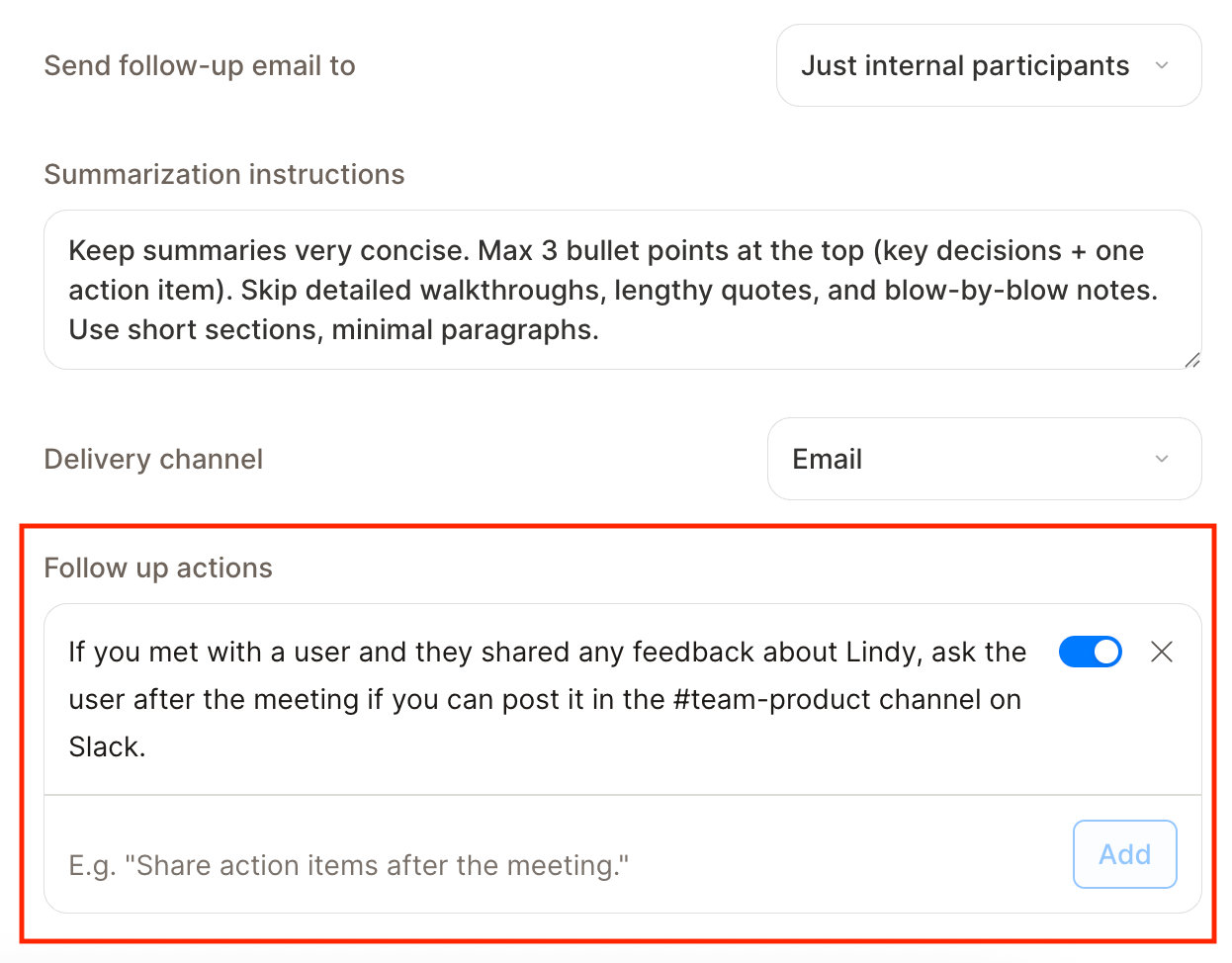 A favorite: have Lindy DM you in Slack right after the meeting ends, with the still-outstanding action items and a heads-up on anything that needs your attention.
Send a Slack DM with action items
Other examples:
* "Update the CRM with notes from every sales call"
* "Create a Notion page with the meeting summary"
* "Send action items to the project lead if they weren't on the call"
This covers post-meeting follow-ups. Lindy can also draft follow-up bumps when someone hasn't replied to an email you sent — see [Follow-up Bumps](/features/inbox-management/follow-up-bumps).
## Quick Setup
1. On the **Routines** page, open the **Personal** tab and click the **Meeting note taking** card
2. Toggle the routine on
3. Connect your Google Calendar or Microsoft Outlook calendar
4. Set your notetaker display name and summarization instructions
5. Lindy joins and records from your next scheduled meeting on Google Meet, Zoom, or Microsoft Teams
## Relevant Docs
Get context before every meeting
A morning brief on your day and meetings
Lindy proposes times and books meetings for you
Text Lindy to query your meeting history