> ## Documentation Index
> Fetch the complete documentation index at: https://lindyai-docs-usage-credit-optimization-tips.mintlify.site/llms.txt
> Use this file to discover all available pages before exploring further.
# Quickstart
> Get Lindy into your team's Slack, then connect your own email, calendar, and phone. Two minutes.
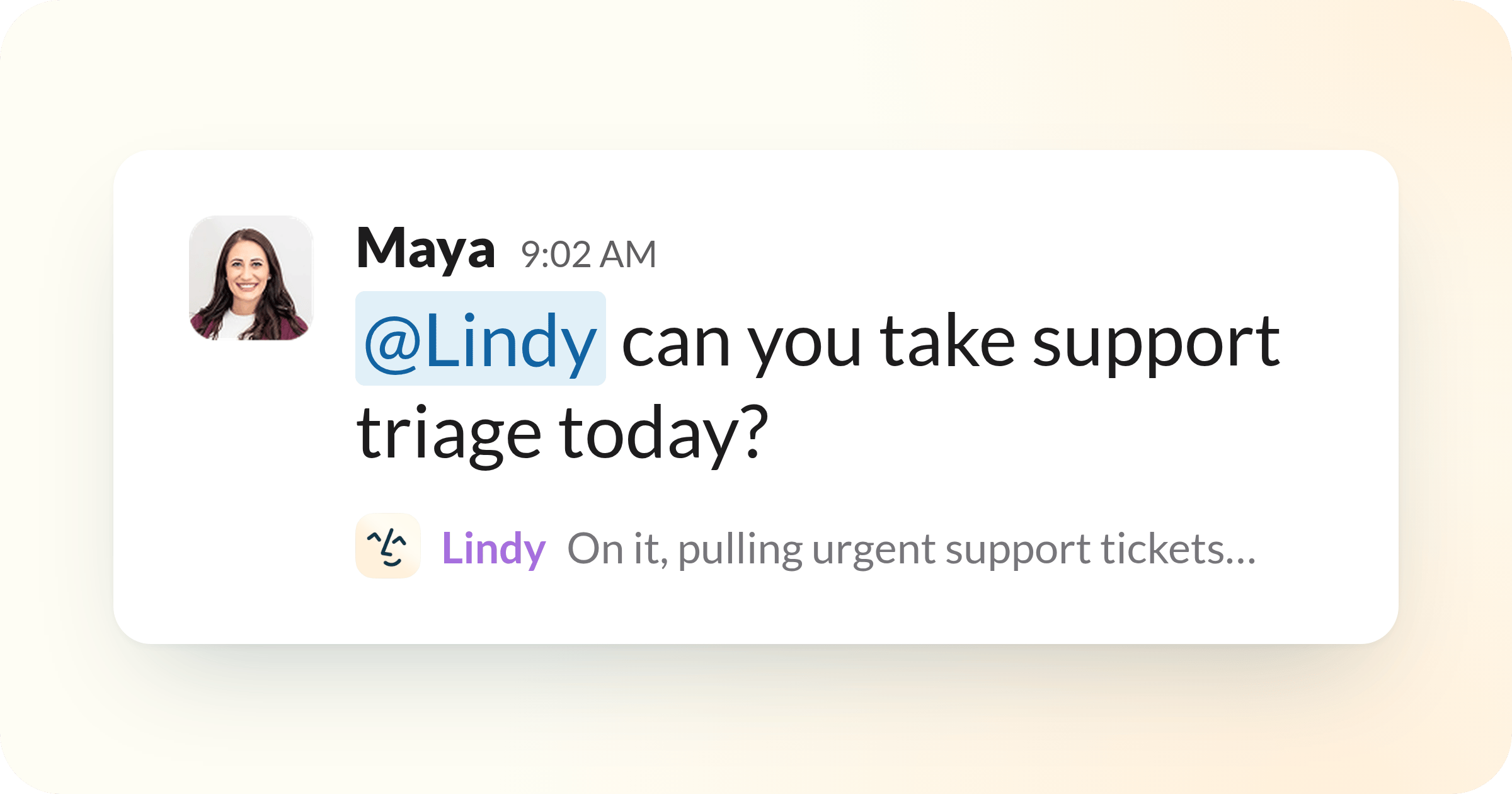 Two quick parts: get Lindy into your team's Slack, then connect your own email, calendar, and phone so it can run your inbox, meetings, and scheduling.
## 1. Get your team on Lindy
An admin installs Lindy from Slack's **Add to Slack** screen. The installer is linked automatically.
The first time a teammate DMs or @mentions Lindy, it replies with a **Connect Slack to Lindy** button. Tap it, confirm, and you're linked. Your original message runs on its own once you're connected.
For the full picture (how to talk to Lindy, guardrails, and what it can do), see [Set up Lindy](/coming-soon/setup).
## 2. Set up your account
Connect your Google or Microsoft account so Lindy can run your inbox, prep and take notes on meetings, and handle scheduling.
Add your phone number (or connect Apple Messages) so you can text Lindy from anywhere. You'll verify with a code.
Connect the tools you use, like Notion, HubSpot, Linear, and 1,000+ more, so Lindy can work across your whole stack. See [Integrations](/integrations/overview).
Your data is encrypted, never sold, and never used to train models. Lindy is SOC 2, GDPR, and HIPAA compliant. [Learn more about security](/resources/security).
## Try it
Ask Lindy in Slack, a DM, or by text:
* *"What's on my calendar today?"*
* *"Draft a reply to \[name]'s email"*
* *"Schedule 30 minutes with \[name] next week"*
* *"Summarize yesterday's meeting with \[name]"*
## Next Steps
The full team and account setup
Where you talk to Lindy and see what it's done
Recording, notes, and your shared library
Seats, credits, and the shared pool
Two quick parts: get Lindy into your team's Slack, then connect your own email, calendar, and phone so it can run your inbox, meetings, and scheduling.
## 1. Get your team on Lindy
An admin installs Lindy from Slack's **Add to Slack** screen. The installer is linked automatically.
The first time a teammate DMs or @mentions Lindy, it replies with a **Connect Slack to Lindy** button. Tap it, confirm, and you're linked. Your original message runs on its own once you're connected.
For the full picture (how to talk to Lindy, guardrails, and what it can do), see [Set up Lindy](/coming-soon/setup).
## 2. Set up your account
Connect your Google or Microsoft account so Lindy can run your inbox, prep and take notes on meetings, and handle scheduling.
Add your phone number (or connect Apple Messages) so you can text Lindy from anywhere. You'll verify with a code.
Connect the tools you use, like Notion, HubSpot, Linear, and 1,000+ more, so Lindy can work across your whole stack. See [Integrations](/integrations/overview).
Your data is encrypted, never sold, and never used to train models. Lindy is SOC 2, GDPR, and HIPAA compliant. [Learn more about security](/resources/security).
## Try it
Ask Lindy in Slack, a DM, or by text:
* *"What's on my calendar today?"*
* *"Draft a reply to \[name]'s email"*
* *"Schedule 30 minutes with \[name] next week"*
* *"Summarize yesterday's meeting with \[name]"*
## Next Steps
The full team and account setup
Where you talk to Lindy and see what it's done
Recording, notes, and your shared library
Seats, credits, and the shared pool