> ## Documentation Index
> Fetch the complete documentation index at: https://lindyai-docs-usage-credit-optimization-tips.mintlify.site/llms.txt
> Use this file to discover all available pages before exploring further.
# Team Setup
> The two ways people join your workspace, plus admin controls, credits, and ownership
 ## Adding People to Your Workspace
There are two ways someone joins. An admin invites them from team settings, or they add themselves by @mentioning Lindy in Slack. Either way they take a seat on your workspace billing and draw from your shared credit pool.
| How they join | Who starts it | When the seat is billed |
| ----------------------------- | --------------------- | ----------------------- |
| **Invite from team settings** | An admin | Right away |
| **@mention Lindy in Slack** | The person themselves | After a free first week |
### Invite from team settings
Click your **workspace name in the top-left** and choose **Invite a member**.
* Enter one or more **email addresses** (separate multiple emails with spaces)
* Pick a **role**: Member or Admin
* Pick a **plan**: Plus, Pro, or Max
| Plan | Price | Credits it adds to the pool |
| -------- | ----------------- | --------------------------- |
| **Plus** | \$30/mo per user | 3,000 |
| **Pro** | \$100/mo per user | 15,000 |
| **Max** | \$200/mo per user | 35,000 |
Enterprise isn't offered here: it's a custom plan, so [contact us](mailto:support@lindy.ai) instead. See [Pricing](/pricing) for what each plan includes.
## Adding People to Your Workspace
There are two ways someone joins. An admin invites them from team settings, or they add themselves by @mentioning Lindy in Slack. Either way they take a seat on your workspace billing and draw from your shared credit pool.
| How they join | Who starts it | When the seat is billed |
| ----------------------------- | --------------------- | ----------------------- |
| **Invite from team settings** | An admin | Right away |
| **@mention Lindy in Slack** | The person themselves | After a free first week |
### Invite from team settings
Click your **workspace name in the top-left** and choose **Invite a member**.
* Enter one or more **email addresses** (separate multiple emails with spaces)
* Pick a **role**: Member or Admin
* Pick a **plan**: Plus, Pro, or Max
| Plan | Price | Credits it adds to the pool |
| -------- | ----------------- | --------------------------- |
| **Plus** | \$30/mo per user | 3,000 |
| **Pro** | \$100/mo per user | 15,000 |
| **Max** | \$200/mo per user | 35,000 |
Enterprise isn't offered here: it's a custom plan, so [contact us](mailto:support@lindy.ai) instead. See [Pricing](/pricing) for what each plan includes.
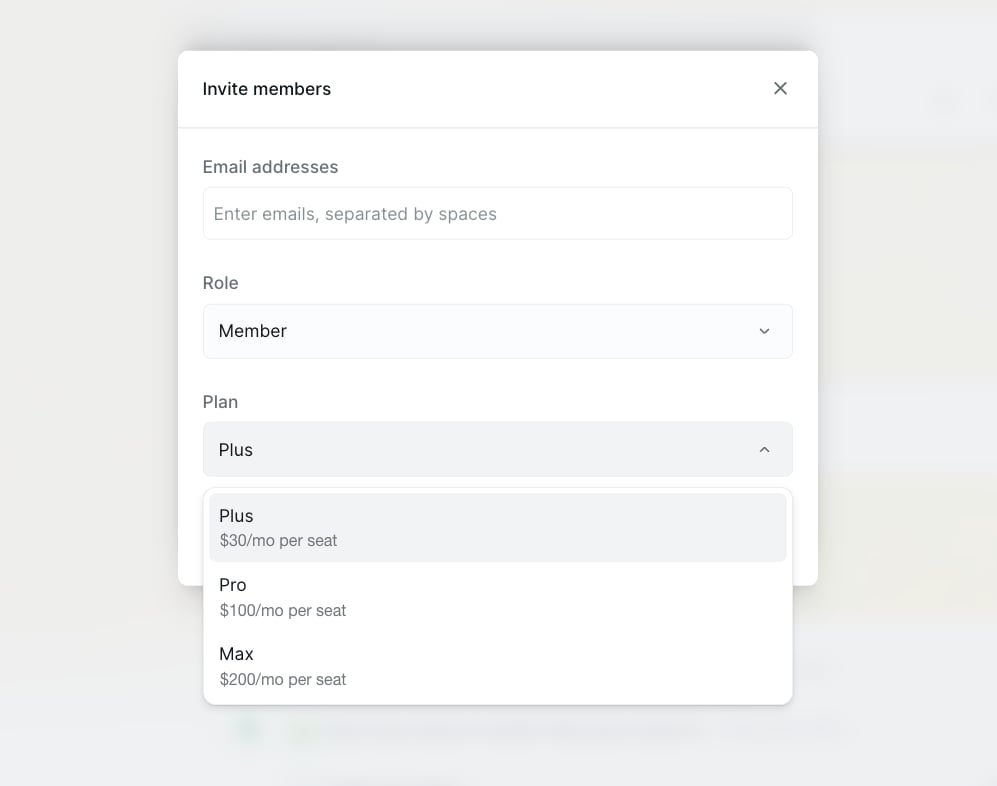 Click **Send invite**. Their plan is added to your workspace billing, and your workspace credits increase to reflect the additional plan. Existing members and permissions stay the same.
### @mention Lindy in Slack
Once Lindy is installed in your team's Slack, anyone can add themselves just by talking to it. No admin step, and no invite to wait for.
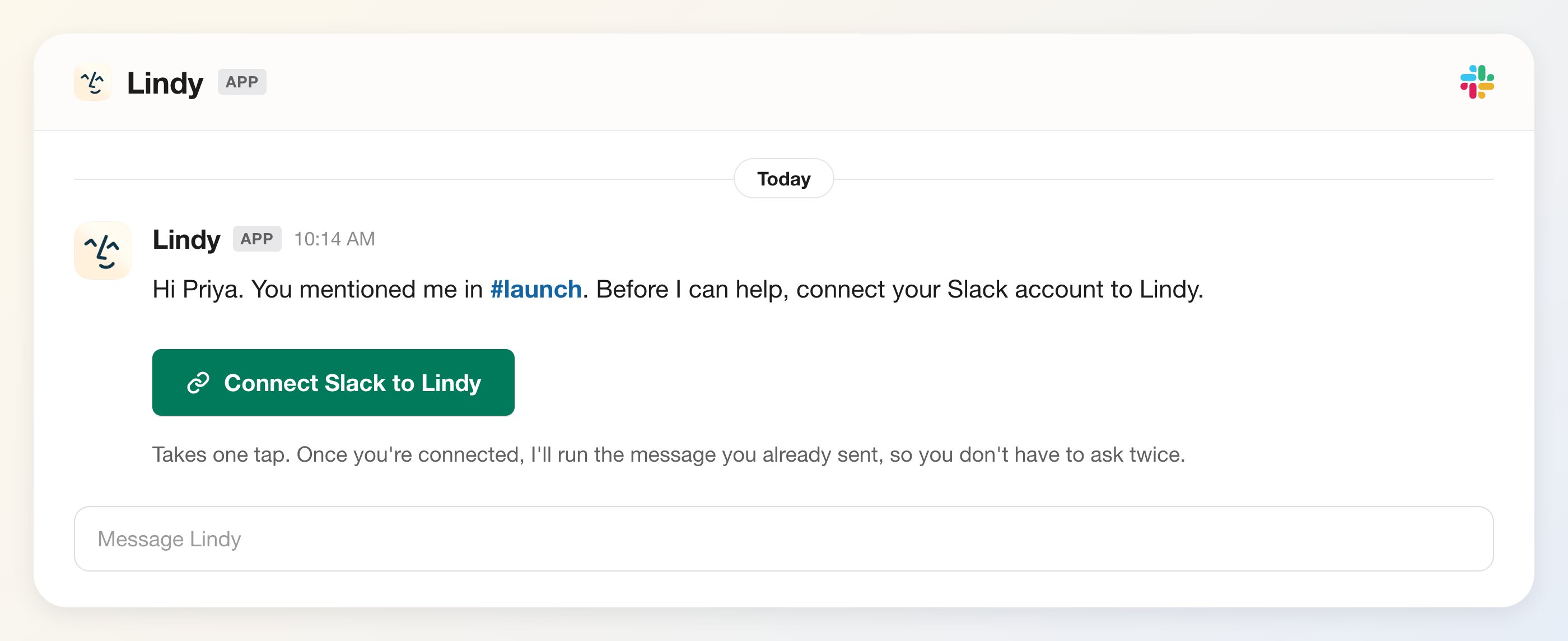
The first time, Lindy doesn't answer yet. It replies with a single DM containing a **Connect Slack to Lindy** button.
They confirm while signed in to Lindy, which binds their Slack identity to their Lindy account. If they don't have one, Lindy creates it under your workspace.
The message that started it all is replayed automatically once they're linked, so nothing is lost.
Click **Send invite**. Their plan is added to your workspace billing, and your workspace credits increase to reflect the additional plan. Existing members and permissions stay the same.
### @mention Lindy in Slack
Once Lindy is installed in your team's Slack, anyone can add themselves just by talking to it. No admin step, and no invite to wait for.
The first time, Lindy doesn't answer yet. It replies with a single DM containing a **Connect Slack to Lindy** button.
They confirm while signed in to Lindy, which binds their Slack identity to their Lindy account. If they don't have one, Lindy creates it under your workspace.
The message that started it all is replayed automatically once they're linked, so nothing is lost.
 **Admins stay in the loop.** Every admin gets an email when someone joins this way: who they are, that their first week is free, and a one-click link to remove them. If you remove a seat and that person @mentions Lindy again, it tells them it can't help and pings an admin. It won't quietly re-add them.
For how seats and the shared credit pool work, see [Billing](/coming-soon/lindy-teammate-billing). To get Lindy into Slack in the first place, see [Set up Lindy](/coming-soon/setup).
## Admin Controls
Admins can control which features are available to users across the workspace. Toggle each feature on or off to manage access.
Go to **Settings** and choose the **Settings** option under Workspace.
| Feature | What It Controls |
| --------------------- | ----------------------------------------------------------- |
| **Meeting Recording** | Allow users to record meetings and generate summaries |
| **Email Drafting** | Allow users to have Lindy draft replies in their voice |
| **Email Triaging** | Allow users to have Lindy triage and prioritize their inbox |
## Managing Members
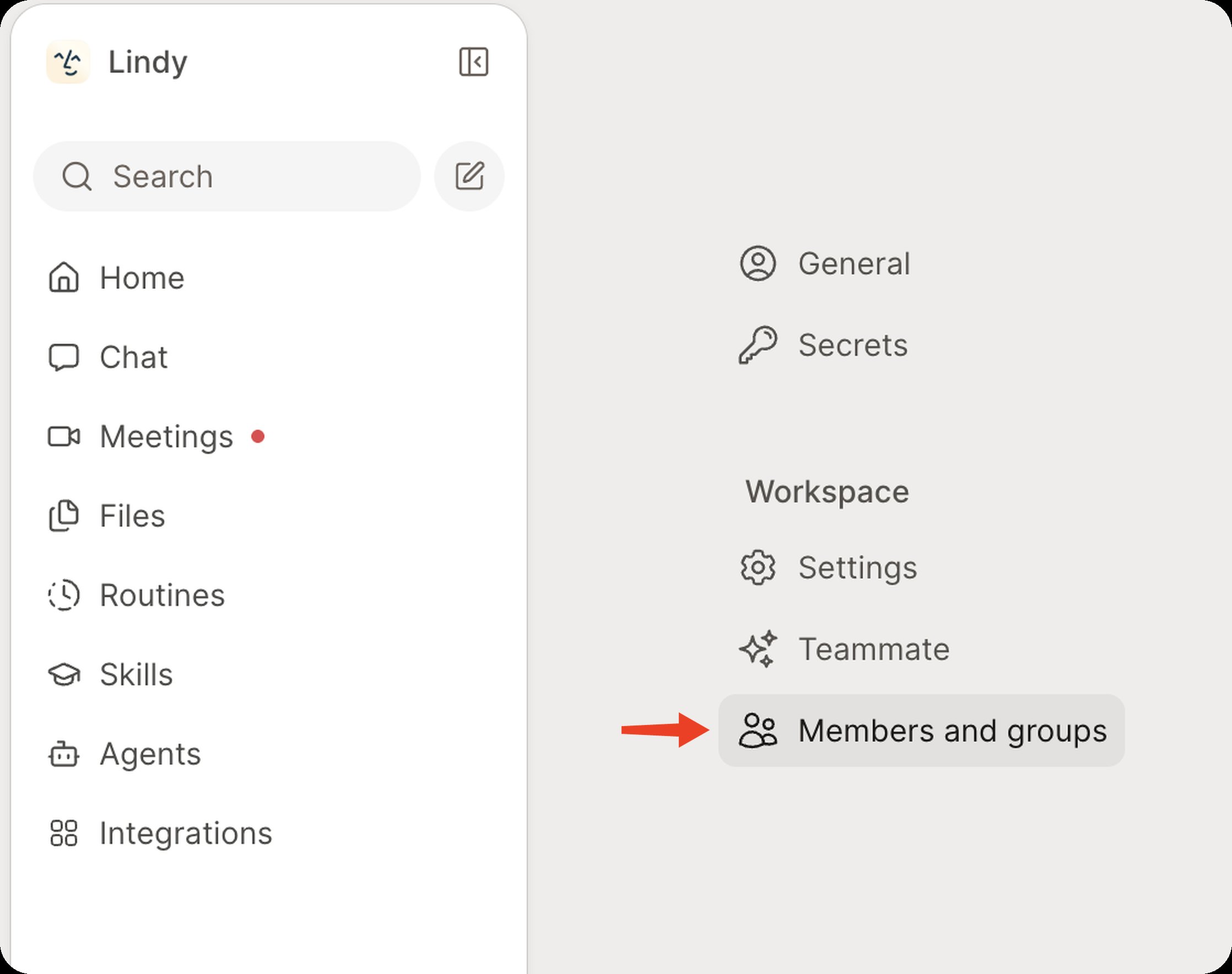
To manage existing members, click your **workspace name in the top-left → Settings → Members and Groups**.
**Admins stay in the loop.** Every admin gets an email when someone joins this way: who they are, that their first week is free, and a one-click link to remove them. If you remove a seat and that person @mentions Lindy again, it tells them it can't help and pings an admin. It won't quietly re-add them.
For how seats and the shared credit pool work, see [Billing](/coming-soon/lindy-teammate-billing). To get Lindy into Slack in the first place, see [Set up Lindy](/coming-soon/setup).
## Admin Controls
Admins can control which features are available to users across the workspace. Toggle each feature on or off to manage access.
Go to **Settings** and choose the **Settings** option under Workspace.
| Feature | What It Controls |
| --------------------- | ----------------------------------------------------------- |
| **Meeting Recording** | Allow users to record meetings and generate summaries |
| **Email Drafting** | Allow users to have Lindy draft replies in their voice |
| **Email Triaging** | Allow users to have Lindy triage and prioritize their inbox |
## Managing Members
To manage existing members, click your **workspace name in the top-left → Settings → Members and Groups**.
 ### Allocating Credits
Admins and owners can set credit limits for each teammate, capping how many credits they can use each month. Click the **…** menu on a member's row and choose **Edit credit limit**.
### Allocating Credits
Admins and owners can set credit limits for each teammate, capping how many credits they can use each month. Click the **…** menu on a member's row and choose **Edit credit limit**.
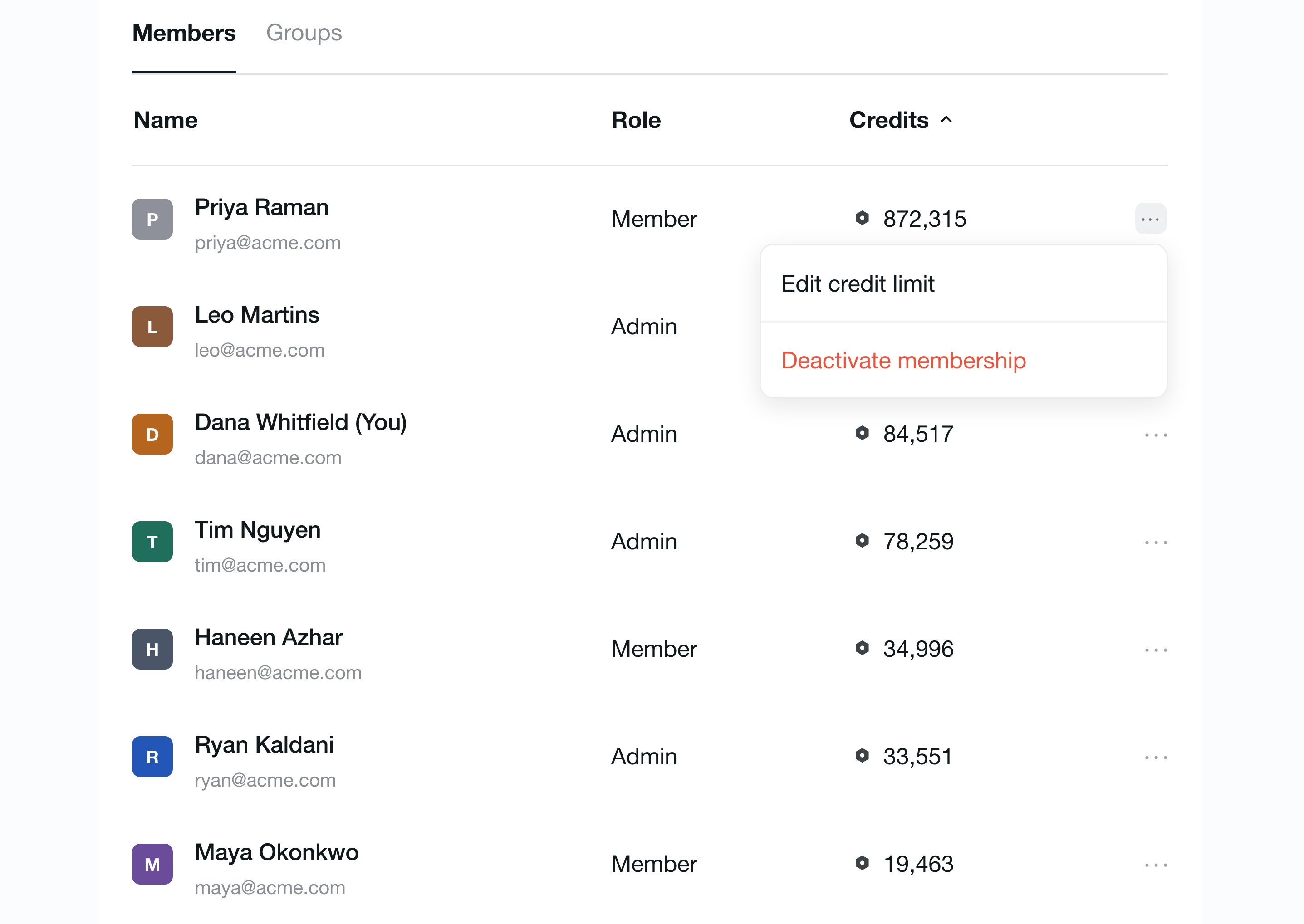 We can only stop credit usage after the limit has been exceeded, not at the exact threshold. For example, if a teammate's limit is 100 credits and they've used 90, a task that costs 50 credits will still run to completion — but no further credit usage will be allowed afterward.
### Transferring Workspace Ownership
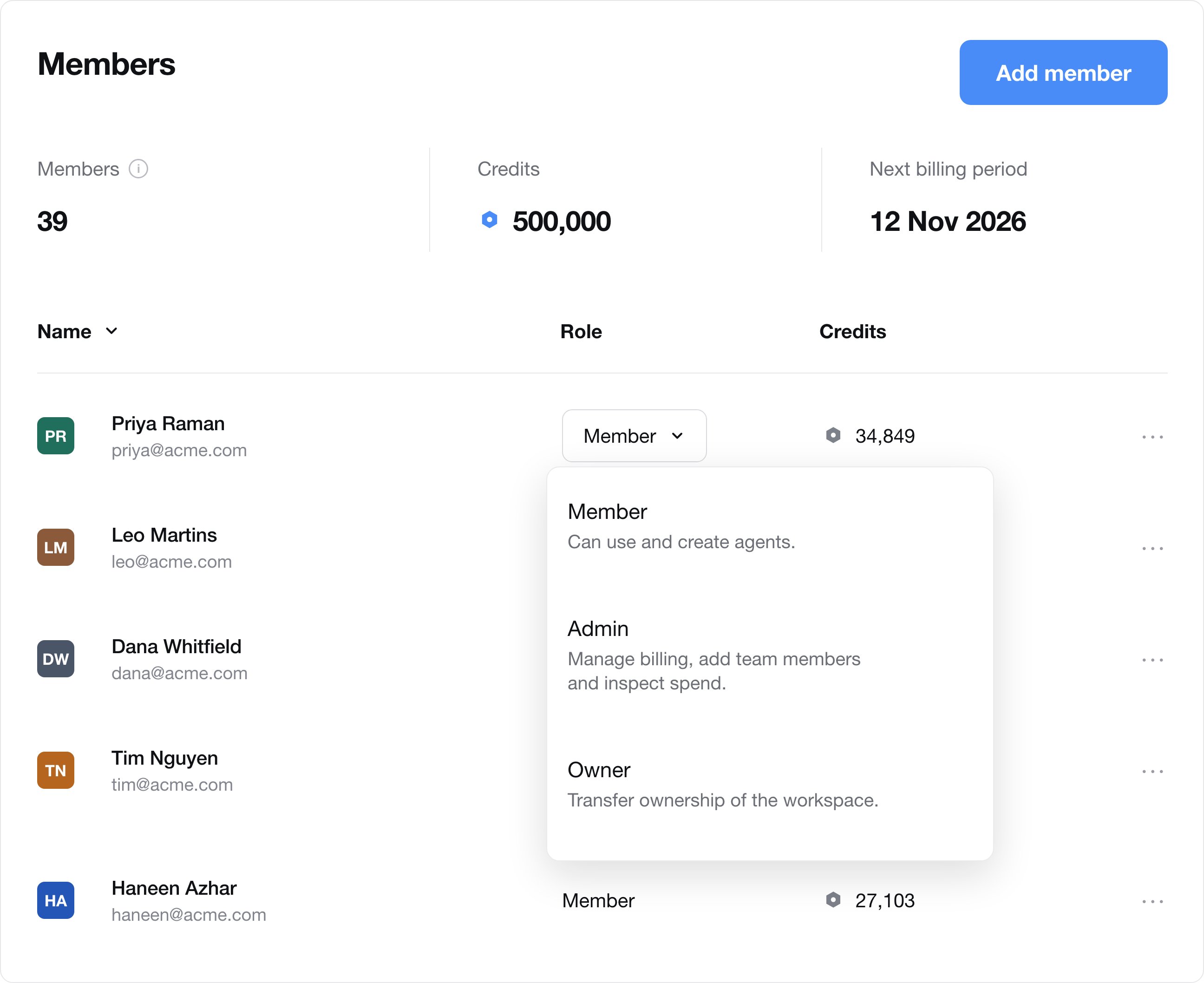
Owners are the only ones who can manage the payment method, change the workspace name and logo, and delete the workspace. Owners can transfer ownership by clicking the role dropdown next to a member's or admin's name and changing their role to **Owner**.
We can only stop credit usage after the limit has been exceeded, not at the exact threshold. For example, if a teammate's limit is 100 credits and they've used 90, a task that costs 50 credits will still run to completion — but no further credit usage will be allowed afterward.
### Transferring Workspace Ownership
Owners are the only ones who can manage the payment method, change the workspace name and logo, and delete the workspace. Owners can transfer ownership by clicking the role dropdown next to a member's or admin's name and changing their role to **Owner**.