

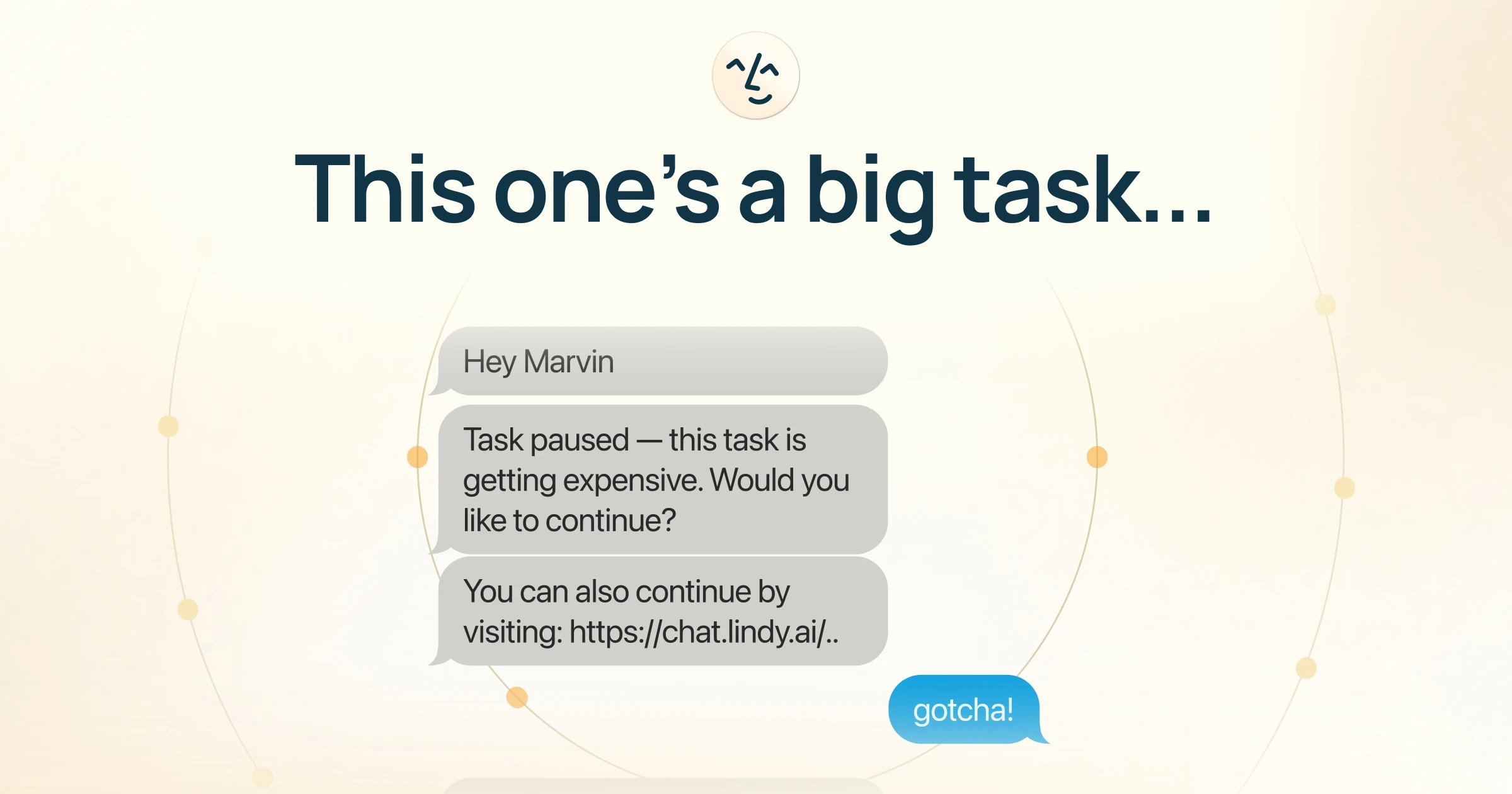
Usage Warning: Why Am I Seeing This?
Lindy paused a task because it’s using significantly more resources than usual. This is a protection for you, not an error. Every action Lindy takes uses part of your plan. When a task starts using more resources than expected, Lindy pauses to check in before continuing. This is most common with ad hoc research tasks, but can happen with any task. You can continue (the task finishes normally) or stop (no additional resources are used). If you stop, you can still chat with Lindy in that conversation and resume later.Plan Usage by Feature
Your Lindy plan covers all features. Here’s a general sense of resource usage:
Most users never come close to their plan’s limits. Your plan resets every billing cycle (monthly from your signup date). Unused resources do not roll over.
Checking your usage
To see your task usage, go to Settings → Billing, then scroll down to the usage section.What Happens When You Hit Your Usage Limit?
- Lindy pauses until your next billing cycle.
- Your data and settings are safe. Lindy won’t automatically restart paused tasks, but nothing is deleted. You can manually restart anything when your plan resets.
- Your plan resets monthly from your signup date.
What if I need more before my plan resets?
What if I need more before my plan resets?
You have two options:
- Upgrade your credits: Go to Settings → Billing → Upgrade to move to a higher plan on a month-to-month basis. Note that there is no option to purchase one-off credits.
- Enable Overages: In Settings → Billing, toggle on Overages to let Lindy continue working beyond your plan limit. Note that overage usage is charged at 2x the cost of regular Lindy credits.
Will my paused tasks pick up automatically?
Will my paused tasks pick up automatically?
No. When your plan resets, you’ll need to manually restart any tasks that were paused. Nothing is lost: your conversations, settings, and history are all preserved.
Credit Optimization
Most users never come close to their limit. If you want to stretch your plan further, these are the levers that make the biggest difference, in rough order of impact.Pick the right model
To reduce credit usage in Lindy, switch the model in your conversations to a more cost-effective option. Advanced models earn their cost on hard reasoning and analysis; routine work like summarizing, drafting, and lookups runs well on a cheaper one. You can set a default model for all conversations:- Go to chat.lindy.ai/home
- Open the model dropdown below the main taskbar
- Choose your preferred model
- Select Set as default
Habits that stretch your plan
Start a new chat for a new topic
Start a new chat for a new topic
Every message in a conversation re-reads everything above it, so a long-running thread gets more expensive with each turn.Starting a fresh chat for an unrelated topic keeps every conversation lean. You lose nothing by doing it: what Lindy knows from your emails, meetings, and calendar carries across every conversation, so a new chat still knows your context.
Be specific about what you want
Be specific about what you want
Ad hoc research is the one row in the table above whose cost genuinely varies, and vagueness is usually the reason. A precise brief tells Lindy when it’s done; an open-ended one doesn’t.
- Costs more: “Research Acme.”
- Costs less: “Give me five bullets on Acme’s funding history and their last two product launches.”
Turn off routines you aren't using
Turn off routines you aren't using
Routines run on their own schedule whether or not you read the result, and each run uses part of your plan. Daily briefs, email drafting, follow-up bumps, and meeting prep all keep going until you turn them off.Open the Routines page from the left sidebar and review the Personal tab once a month. Flipping a routine off stops it without removing it, so you can turn it back on whenever you want. See Routines for the full list of what ships built in.
Record only the meetings you need notes on
Record only the meetings you need notes on
Recording and transcribing a meeting is one of the heavier things Lindy does. If it’s joining everything on your calendar but you only ever read the notes from client calls, narrow it.On the Routines page, open the Personal tab and click the Meeting note taking card. You can have Lindy join All meetings, External only, or Specific meetings.
Reconnect integrations that have dropped
Reconnect integrations that have dropped
When a connection expires, Lindy keeps trying to do the work you asked for, and the failed attempts still use part of your plan. A dropped integration can quietly cost you for weeks.Open Integrations and check the status on each connection. Anything marked as needing reconnection, usually an expired token, is worth fixing right away. See Integrations.
Check your usage weekly
Check your usage weekly
A quick look at Settings → Billing once a week turns an end-of-month surprise into a small adjustment you make on a Tuesday. It’s also how you notice a routine burning more than you expected.Worth knowing: if you go over and have Overages enabled, that usage is charged at 2x your plan’s standard rate.